From Podcast to Publishable Shorts
How to Turn a Podcast into Short Clips with ClipPrism
Turn a video or MP3/WAV podcast into clips with ClipPrism. Review the cut, captions and schemes, then prepare an MP4 output or video editor handoff.
You have the interview, but finding a short excerpt to share takes a few more decisions. An interesting answer still needs enough context for a new viewer, accurate captions, and a clean ending.
This guide shows how to turn a video podcast into a short clip in ClipPrism, from upload to a captioned export. We follow one AI-suggested clip from a ten-minute founder interview. Use the same workflow for your own show or when preparing clips for a client.
The workflow: upload your recording → review suggested clips → choose one useful answer → refine the cut and captions → preview and download.
The result: six suggestions narrowed to one relevant answer, then expanded from about 12 to 24 seconds to include the host’s question. Watch the 24-second result.
1. Give the clip a purpose, then upload
Before choosing a moment, write down who this particular post is for and what they should learn. “Promote the episode” is a distribution goal; it does not yet tell you which answer to select.
Our example uses The Build Log interview with Colin Sidoti. We want to make a post for SaaS founders and product managers deciding which customer feature requests to build. Define a similarly specific viewer and question for your own recording.
Start with a video recording you own or have permission to edit and share. Open My content, choose a video file or paste a supported video link, select its spoken Video / Audio language, and give it a recognizable name. Confirm your content rights and check the file and account limits before choosing Find clips. We started with Automatic recommendations.

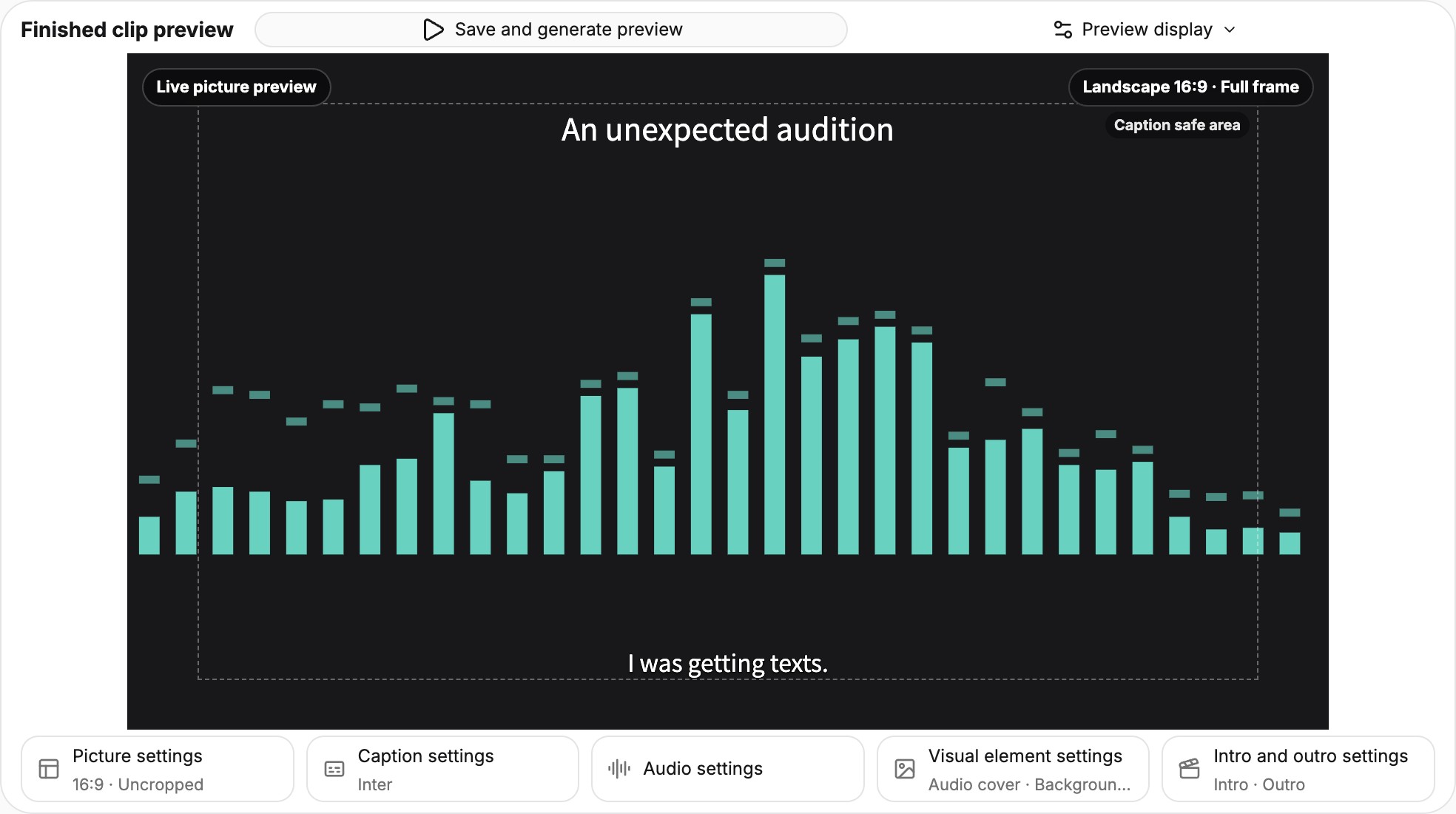
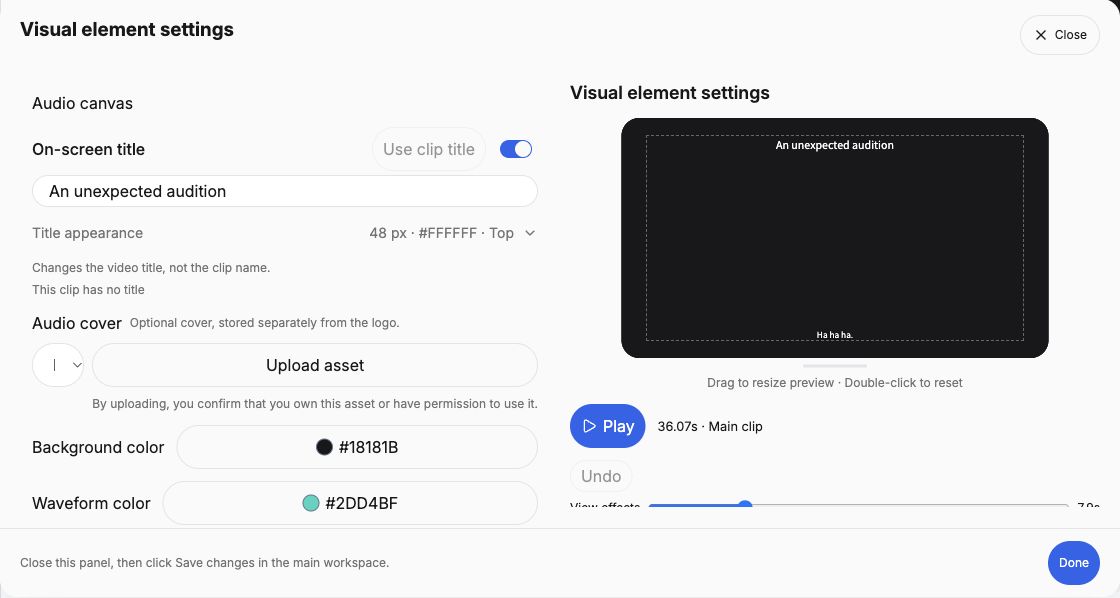
For an audio-only episode, upload MP3 or WAV instead and choose its spoken language. Review the suggestions in the same editor. In the audio canvas, start with the default 1:1 background, add an optional cover, edit the headline and choose a sound visualization. Save the clip, generate its preview and check the resulting Audiogram MP4. The basic canvas is available on Free, with a watermark and no captions at up to 720p; captions, cleanup and other ratios follow the usual plan limits. This interview example uses video; the audio canvas below shows how an audio-only clip is presented.
See the audio canvas and its settings
Before starting, optionally enable Translate under Output language and choose one target language. This is available without an account and on Free, Lite and Standard. It translates the generated Clip captions, not the full source transcript; if translation fails, the original captions remain available. Caption editing and export keep their own plan limits: create an account to export, and Free MP4 exports do not include captions.
Keep the page open until submission is confirmed. You stay on My content, where Recent content shows the processing percentage and estimated time remaining when available. When processing finishes, choose Review clips. Already have a topic in mind? Read the guide to finding podcast clips by topic.
2. Use AI recommendations as a shortlist
The automatic pass returned six candidates. An IPO-related moment scored 84/100; a product-roadmap moment scored 70/100. We chose the roadmap candidate because it addressed this post’s question.
Read the recommendation reason and any flagged issues, then compare them with the actual excerpt. Does the speaker answer the question you want to explore? Does the selected passage include the context a new viewer needs? A score can help you decide what to inspect first. It is not a forecast of views or a substitute for your brief.
You do not need to resolve every candidate before moving on. Pick one worth editing. The 70-versus-84 comparison in Guide 2 explains that editorial choice in more detail.
3. Adjust the boundaries for understanding
The original roadmap suggestion was about 12 seconds long. It began with the guest’s answer, without the host’s preceding question. In Edit clip, under Range, we moved the start earlier to keep that question and trimmed a little from the end.
The editing view shows an original range of approximately 07:27.7–07:39.6 and a revised selection around 07:15–07:39, in source-video time. The downloaded file is about 24 seconds long.
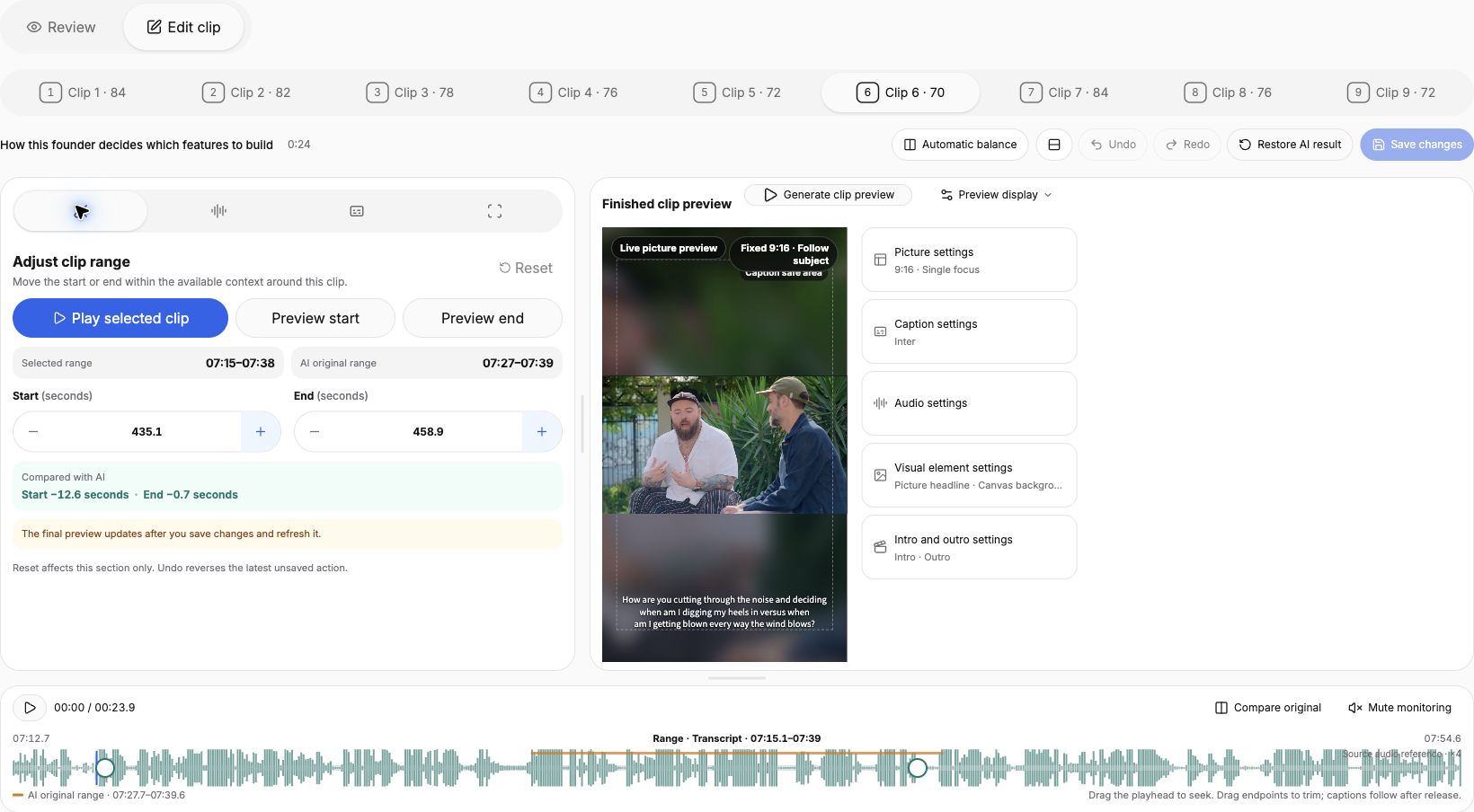
Move the start only as far back as the viewer needs, and stop after a complete thought. Then replay both boundaries. Adding a question may clarify the exchange, but it also takes up time—and the question can still depend on earlier context. In this case, it frames a decision about staying the course; it does not explicitly name customer feature requests. The guide to choosing start and end points shows how to make this tradeoff.
4. Check captions and the saved preview
After changing the range, review the captions for the new selection. Check names, words that change the meaning, and lines that appear too early or linger after the speaker has moved on. We corrected the company name Clerk.
For recurring names and technical spellings, ClipPrism offers Professional terms and Account glossary. Guide 5 explains how to preview term corrections and reuse a glossary, with a review before changes are saved.
Keep the speaker’s words separate from promotional copy. A suggested opening hook can help you write a post title; it should not replace what the person actually says in the subtitles.
Use the five scheme categories—Picture schemes, Caption schemes, Audio schemes, Visual element schemes, and Intro / outro schemes—for a reusable starting point. Browse built-in or personal schemes, compare the candidate with your clip, and explicitly apply it. Their corresponding settings adjust the current draft. Complete effect combines the categories you include; settings outside the selected combination stay as they are. Saving a scheme and saving the clip are separate actions.
For this clip, keep the branding simple. In Visual element settings, add an authorized logo, title, image or muted video overlay only when it helps the viewer. Set each overlay’s timing and layer order on the shared timeline. Intro / outro settings can use an uploaded asset or a text card; check the full sequence so a short answer does not become buried between long bookends.
Choose Save changes, then Generate clip preview in the preview header. Check speech with sound on, then check whether captions are readable without sound. Inspect the opening, ending and shot changes. A live picture preview is not the rendered export. If the saved version is stale, Refresh final preview in the check list also starts generation; review the playable result before continuing. In Finished clip check, address required items and complete your review before choosing Download MP4.
5. Export and inspect the actual MP4
Here is the finished edit: a 24-second captioned MP4 in 16:9 landscape. Play it to hear how the host’s question leads into the guest’s answer.
Read the captions in the reviewed example
Captions from the video, formatted for reading.
Host: How are you cutting through the noise and deciding when am I digging my heels in versus when am I getting blown every way the wind blows? How do you kind of find that center that allows you to push forward confidently?
Guest: We know what Clerk looks like in 10, 15 years. An initial question is just like, is it accelerating the roadmap or not? If it’s not on the roadmap, then easy, like hard no.
Open the downloaded MP4 and confirm its boundaries, captions, sound and framing. This example preserves the source’s landscape composition. For a vertical post, follow the 9:16 interview reframing guide, which compares this edit with a vertical version.
If the next step is further editing in Premiere, Resolve or Final Cut, open NLE handoff under Export and deliver. Use a saved clip version; if the draft has changes, save it first or explicitly choose Use last saved version. Choose the editor, caption inclusion and editing handles, read the compatibility checklist, then generate and download the ZIP.
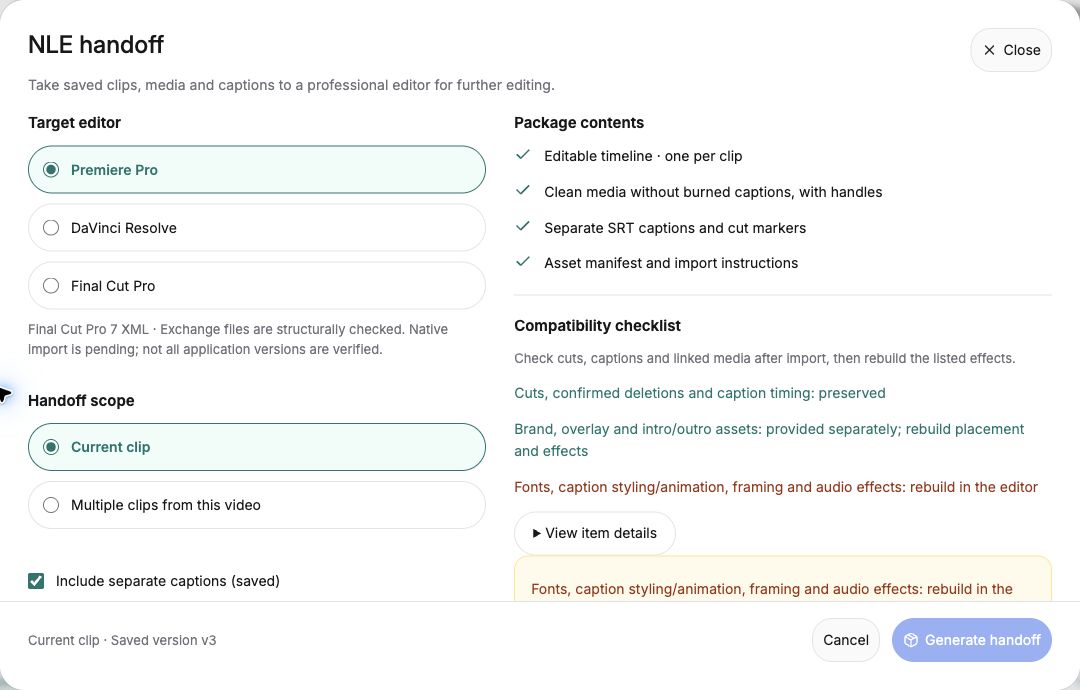
The handoff contains a timeline, trimmed media, saved SRT captions and referenced assets. Including saved translated SRT captions requires Standard, even when the translation was generated during discovery. Premiere/Resolve use FCP 7 XML and Final Cut uses FCPXML 1.9. Inspect cuts, captions and media links in the target editor; complex framing, caption styling, audio effects and intros/outros require rebuilding. This is not a native project or the complete source file. Lite supports one saved video clip; Standard supports multiple clips from the same video, with separate timelines. Audio sources and audiograms are not supported by handoff.
Before posting, add a truthful title and a clear route to the full episode or another relevant next step. For this clip, a title such as A founder’s roadmap test for customer feature requests would identify the subject without promising a universal formula.
What access does this workflow need?
Caption editing and topic search are available with Lite and Standard. In Edit captions, switching to translated or bilingual captions and generating or regenerating a translation require Standard. Lite can save one personal scheme in each category, including Complete effect; Standard can save ten per category and apply schemes to multiple clips. Basic audio canvas controls do not unlock paid caption, audio-cleanup or branding features. Compare plans to choose the features and processing allowance you need.
For detailed steps, follow the guides to making an audiogram, reusing brand effects and handing saved clips to an editor.
Use the same source for other useful outputs
If the recommended clips miss a passage you remember, search its original words or meaning, then create a Clip from source times. An existing corrected caption file can be imported and matched as SRT without replacing the trusted transcript.
Finish the delivery with authorized background music, a cover or quote card, and show notes, chapters or social writing. Each workflow has its own save and review steps. Manage reusable schemes in Brand & styles, then explicitly apply them to the Clip you are preparing.
Start with one interview and one useful answer
Choose an owned or authorized recording and write the question your next viewer needs answered. Open it in ClipPrism, review the suggestions, and develop one candidate before planning a batch.
Turn your podcast into clipsTry one video up to 30 minutes without an account, using an upload or a supported platform link. Review all recommended clips, adjust their boundaries, and save notes. Create a free account to export MP4 clips.
Use a recording you own or have permission to edit and share.