
From Podcast to Publishable Shorts
Where to Start and End a Podcast Clip
Choose a continuous source range or refine an AI suggestion. Check context, understand creation charges and save a cut with a complete opening and ending.
A promising answer starts halfway through a thought. You move the start a few seconds earlier, and suddenly the opening feels slow. You tighten the ending, but now the guest sounds more absolute than they did in the interview. The goal is a cut that starts clearly, holds attention, and ends with a complete point. Here is how to find those start and end points in ClipPrism.
Start where a new viewer can follow the subject. End after the speaker completes the point. Keep the smallest amount of context that makes the point understandable and fair. That may make a clip longer.
Our example grows from a 12-second AI suggestion to a 24-second captioned clip. The extra time restores the host’s question.
1. Write the one question this clip answers
For an interview creator, the most useful starting point is a sentence you can use to assess both boundaries: “This clip explains how the guest decides whether a feature request belongs on the roadmap.” If an opening sentence establishes that question, it has a job. If the next passage starts a different answer, it may belong in another clip.
Our source is an interview with Clerk CEO Colin Sidoti on The Build Log. For this post, we want SaaS founders and product managers to understand one way he evaluates customer requests. For your own episode, name the viewer and the question before moving the cut.
Listen to the sentences immediately before and after the candidate. Pronouns, unnamed companies, references to an earlier example, and words such as “but” can reveal dependencies that a fluent excerpt hides. A good opening is not necessarily the loudest sentence. It is an entry point a new viewer can follow.
2. Compare a short answer with the question restored
The original candidate starts around 07:27.7 and ends around 07:39.6 in the source. The guest describes a long-term view of Clerk and uses the roadmap as a test for what to build. Watch it before reading the longer version’s explanation.
Before: original candidate, about 12 seconds
The revised selection starts at 07:15.1 and ends around 07:39. It adds the host’s question about staying the course when competing demands pull in different directions. The added question brings the clip to about 24 seconds.
After: question and answer, about 24 seconds
We moved the start about 13 seconds earlier and trimmed a little from the end. The main improvement is the question that sets up the answer. The host’s question still does not explicitly name customer feature requests, so a truthful subject label remains useful. “A founder’s roadmap test for feature requests” fits the excerpt better than a promise to reveal the guest’s entire product strategy.
Try a simple comparison with a colleague who has not heard the episode: show each cut and ask what question it answers. If the shorter version needs your spoken explanation, it is not saving the viewer time.
Create a Clip when you already know the source times
You do not need to wait for an AI recommendation to cover the passage you want. In My content, open the source’s Create Clip action. You can also reach it from the clip workspace, a no-clips result or a timed transcript-search match.
- Enter one continuous interval using source time, measured from the beginning of the original recording. Select at least 1 second; the fields support 0.1-second adjustments. Stay inside the available processed range shown on the page.
- Choose Check selected range. Read the original text, play the selection and use Preview start and Preview end. Selecting a transcript sentence seeks playback; it does not change your range.
- Give the Clip an optional useful name, then choose Create and edit. If a processing-minute confirmation appears, review it before confirming.
- After creation, continue in the normal range editor. The Clip is labeled Created manually; it has no invented AI score or recommendation.
For example, if only minutes 10–40 of a recording were processed, a selection at minute 8 is outside the available range. Choose a passage within the processed interval or process the required material separately. A valid passage without speech can become a Clip with empty captions; unavailable transcription or media is a different issue and needs the recovery action shown.
Creation is available without an account and on Free, Lite and Standard. Already-settled content does not consume processing minutes again. There is one important exception: if an earlier analysis found no Clips and returned its minutes, the first successful manual creation settles the whole previously processed interval once. A 50-second Clip from a 30-minute processed interval can therefore require 30 minutes, as shown before confirmation. Failed creation releases the reservation; later Clips from the settled source do not repeat the charge.
If the result is uncertain, use Check request before submitting again. If the same manual interval already exists, open that Clip instead. Creation does not unlock paid caption editing, output settings or downloads, and it does not extend source retention. For a much wider selection later, return to source creation; fine-tuning an existing manual Clip is limited to nearby processed context.
3. Move one boundary at a time in ClipPrism
- Open the chosen candidate and select Edit clip. Open Captions, then Transcript, to read the Before & after context.
- Switch to the Range task. In Adjust clip range, enter the start and end in seconds or use the timeline handles. The example’s start is 435.1 seconds, equivalent to 07:15.1 in the source.
- Use Preview start, then play enough of the selection to hear how the opening leads into the answer. Do not judge from a still frame.
- Use Preview end and listen through the final phrase. Check both the sound of the cut and the meaning left behind.
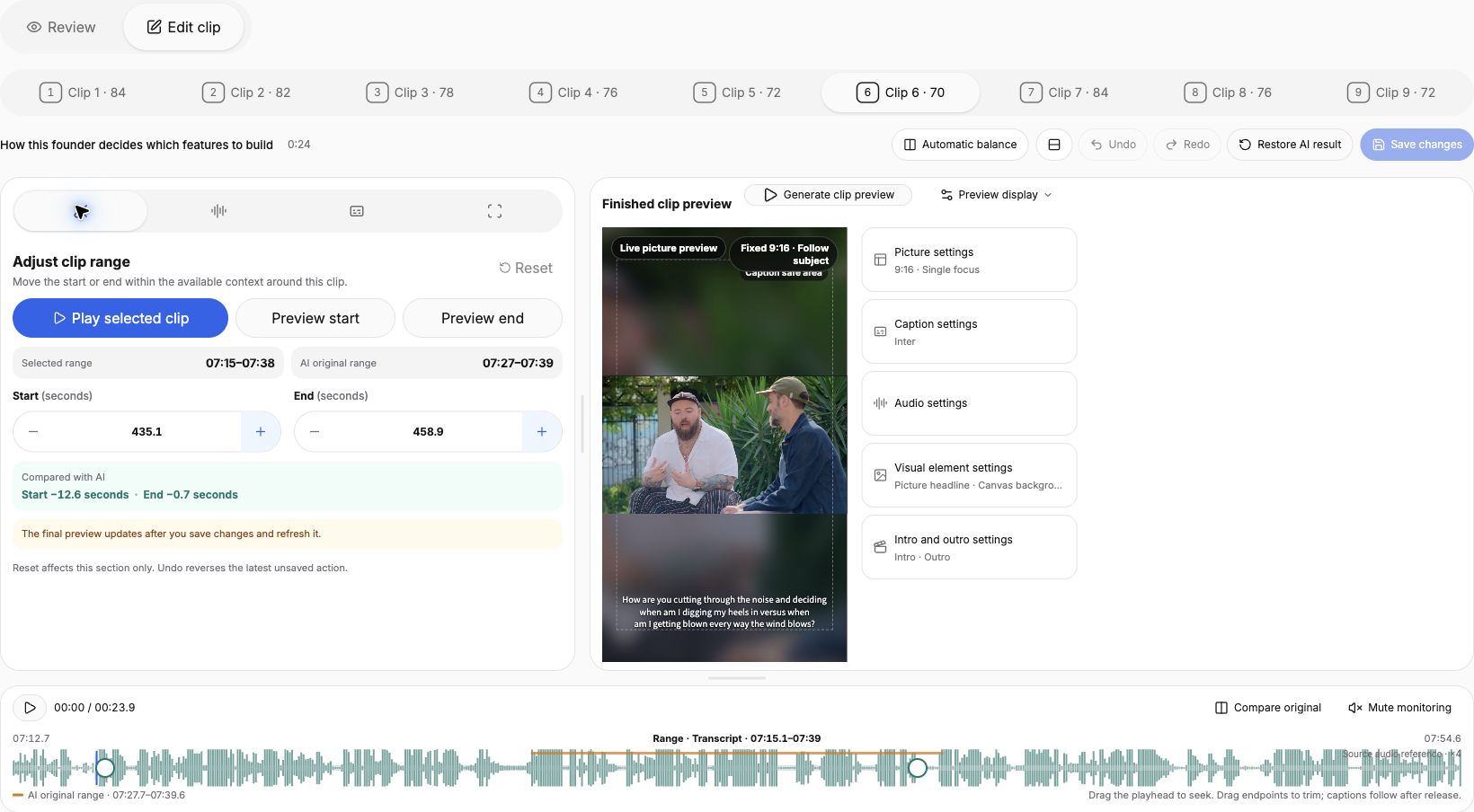
The shared timeline shows the source waveform and nearby context; dragging an endpoint changes the range, while dragging the playhead seeks. The start and end fields allow precise adjustment. Change one boundary, listen, and then adjust the other. Leave enough room for the first consonant and final syllable, and check that the cut does not land halfway through a breath. Small adjustments are easier to judge when you replay the surrounding speech.
4. Stop after the payoff, before a new unfinished point
A complete sentence is a useful marker, but it is not a guarantee of a fair ending. If the speaker immediately adds an exception, a condition, or the reason for a provocative statement, hear it before cutting. A clean stop that removes an essential qualification is still a poor edit.
The roadmap example supports one criterion. A separate, longer passage adds a best-practice test and the importance of the customer’s end-user experience. In our reviewed topic-search example, we stopped around 08:11.6, before a further discussion of refusing requests and long-term maintenance. The last line is “It’s really just give them the best practice approach.” By then, the guest has named both criteria and explained why the customer’s experience matters. Ending here keeps that explanation together; including the next point about refusing requests would also mean keeping enough of its reasoning.
If the ending needs another sentence to make sense, keep it and reassess the clip’s promise. If that creates two competing ideas, choose which one this post should carry. There is no universal number of seconds that resolves that choice.
5. Review the new boundaries in the saved export
Changing the range also changes which words need captions. Switch to Captions, then Edit captions, check the opening and last line, choose Save changes, and then Generate clip preview in the preview header. Complete the Finished clip check before downloading.
Open the downloaded file from its first frame. Check for a clipped first syllable, an awkward breath, an unfinished last word, or captions that outlast the speech. Listen once without looking at the timeline. For a final context check, ask someone unfamiliar with the episode to summarize the clip in one sentence.
Make one candidate easier to understand
In My content, choose Review clips for your recording and select a candidate. Compare it with the surrounding question and answer, keeping the context a new viewer needs.
Refine a podcast clipUse a recording you own or have permission to edit and share. Compare plans and available features.