
From Podcast to Publishable Shorts
How to Reuse Brand Effects Across Podcast Clips
Save personal schemes and Complete effect combinations, review text and media replacement, then apply a consistent appearance without copying editorial decisions.
A recurring show benefits from a recognizable appearance, but every clip still needs its own words and editorial decisions. ClipPrism’s schemes let you reuse presentation settings. Use a single category when you want a small change, or Complete effect when several categories should work together. Start with one finished arrangement, then check how it fits the next clip.
1. Choose the smallest useful set of settings
Picture, captions, audio, visual elements and intro/outro settings each address a different part of the clip. A caption scheme can help keep text readable across episodes; an audio scheme can provide a familiar starting point for a recording setup. Neither should replace listening to the current speaker or checking the current picture.
Complete effect combines selected categories. Use it when a show regularly needs the same caption appearance, logo treatment and bookends. Review the categories included in the combination before applying it. A clip that already has carefully adjusted framing may only need your caption style and logo, not every setting from another episode.
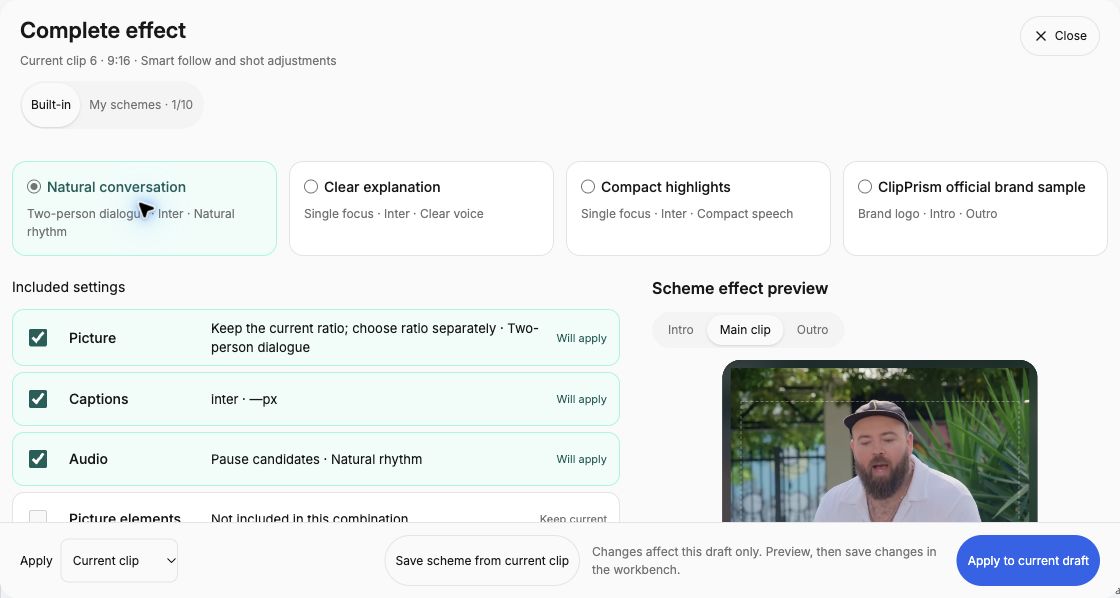
2. Build the appearance around an actual clip
Choose a representative clip from the show and make its presentation readable. Keep the logo away from faces and captions, use colors with enough contrast, and check the title at a small viewing size. Use only artwork, footage and fonts you are entitled to use. A recognizable logo is more useful than a large logo that hides the point of the clip.
For audio-only clips, distinguish the audio cover from the brand logo. The Audiogram guide explains the basic canvas. For timed graphics or supporting imagery, follow the visual elements guide. Those items still need a purpose and timing that make sense for the current passage.
Listen before choosing an audio preset. A setting that helps a quiet solo recording may sound excessive on a lively interview. Compare the original with an effect preview where available. A scheme stores settings; it does not establish that noise was detected or that a particular adjustment is necessary.
3. Save the scheme separately from the clip
When the arrangement is useful, save a personal scheme with a name that describes when to use it. “Interview captions on dark footage” tells you more than “Version 3.” For Complete effect, check the selected categories and the saved text or asset choices before confirming. Keep episode-specific wording out of a reusable choice unless you intend to review or replace it each time.
Lite can save one personal scheme per category; Standard can save ten per category, including Complete effect. These capacities are separate for each category. An official example lets you explore an appearance; it does not grant access to paid changes or exports on your own clips. Check the current plan details when a control shows an upgrade requirement.
Saving a scheme does not save the current clip. Likewise, editing a stored scheme does not silently update clips that previously used it. Finish saving the clip when you want its current draft to become the saved revision. Treat the scheme and the clip as two separate things with two separate reasons to save.
4. Apply to the next clip and inspect what changes
Open the next clip and select the scheme you want to use. Check any confirmation about replacing title text, media or intro/outro wording. Keep existing text when it belongs to this episode, and replace it only when the stored wording is appropriate. A guest’s name or an episode-specific call to action should not be carried across by accident.
Applying to the current clip updates an editable draft. Review the result, make any clip-specific adjustments and choose Save changes. Schemes do not copy caption text, translation language, clip ranges, confirmed audio cuts or analysis results. Check those decisions independently rather than expecting the saved look to reproduce another clip’s content.
Generate the finished preview after saving, then inspect the actual composition. A title that fits a quiet background may disappear over a busy shot. A caption position that worked for one camera angle may cover a face in another. Keep the reusable starting point, but change the settings when the footage calls for it.
5. Review every target before batch application
Batch application requires Standard and applies to selected clips from the same video. Confirm the targets, categories and text replacement choices before applying and saving the changes. Resolve an unsaved current draft deliberately; do not use a batch action as a substitute for deciding whether those edits should be kept.
After the operation, inspect the results for each target and handle any failed items. A shared appearance does not guarantee shared readability. Check long titles, different speaker positions, quiet passages and intro/outro transitions in particular. Then use review and export to make the separate decision about which saved clips are ready to deliver.
Reuse a useful look, then check the clip
Save one clear presentation style and try it on another passage from your own or authorized content.
Open ClipPrism