
From Podcast to Publishable Shorts
How to Add Visual Elements to Podcast Clips
Preview built-in designs or use authorized media, set placement and timing, then add and save overlays. Reuse schemes and check the finished MP4.
A visual element should help someone follow the clip: an arrow can draw attention to a detail, a brief label can clarify a topic, and a diagram can support an explanation. It can also hide captions or distract from the speaker. Add one element with a clear purpose, check its timing and position, then decide whether the clip actually improves.
Preview, add and save are separate steps. Selecting a built-in design previews it on the canvas. Explicitly add it to the draft, then save the clip. Built-in and uploaded overlays require Lite or Standard and share a limit of eight items.
1. Decide what the element needs to explain
Open Edit clip and the visual element settings. For an image or silent-video overlay, choose among built-in designs, your existing account media and a new upload. Use a built-in design when it serves the idea; use an owned or authorized upload when the viewer needs a specific image.
Keep the main message in the recording. For a speaker explaining a decision rule, a small supporting graphic may be enough. A decorative animation that competes with every sentence is harder to justify. Watch the clip once without the element so you have a clear comparison.
Built-in designs are for overlays. They are not the source picker for an audiogram cover, brand logo or intro/outro. Use those separate settings for those jobs. A clip title is also different from the video’s name in My content: check which text will actually appear in the picture.
2. Compare a static and an animated option
In the built-in media picker, filter static or animated designs and select a candidate. Inspect the canvas before adding it. Selection alone does not change the saved clip or commit the candidate to the draft.
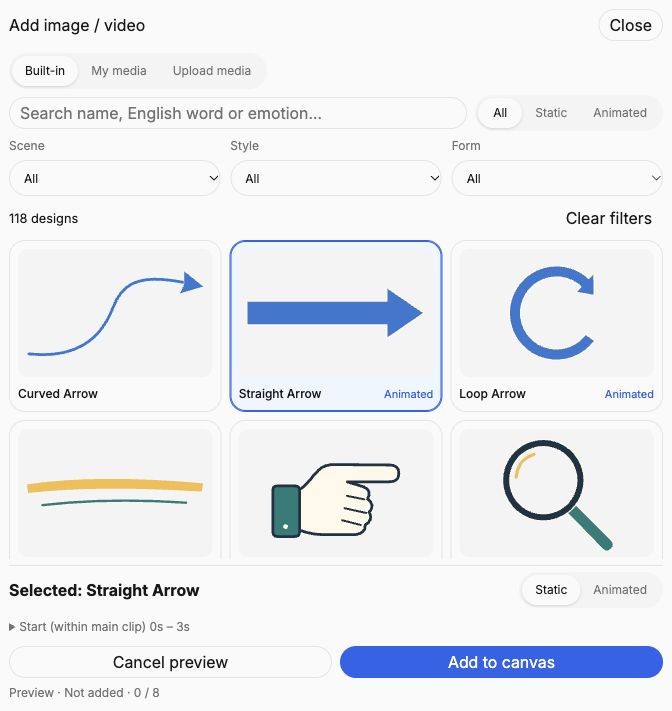
Choose motion only when it contributes something. A static marker may be easier to read beside a dense caption; a short animated accent may work around a pause. Neither option should imply that a guest endorsed a product or a claim that the speech does not support.
If the candidate is unsuitable, leave it out and try another. The ability to browse or preview a design does not mean your plan allows adding it. Check plan access before designing a delivery around overlays.
3. Place it where the viewer can still read
Adjust size, position and the interval in which the element appears. Check the start and end of that interval against the sentence it supports. An animated built-in element loops only during its chosen interval; setting a longer interval does not give the loop a new narrative purpose.
Play the clip through camera changes. A corner that is empty in the opening shot may contain the guest’s face a few seconds later. Check the element against captions, speaker framing and other overlays throughout its duration, rather than approving a single paused frame.
- Keep important text clear at phone size.
- Leave room for captions, including longer translated or bilingual lines.
- Check the first frame where the element appears and the frame where it disappears.
- Remove overlapping decorations before adding another item.
The shared limit is eight built-in and uploaded overlays in total. It is a maximum, not a target. A single well-placed element usually needs less review than a crowded composition.
For uploads, use only media you own or are authorized to use. Supported images are PNG, JPEG and WebP up to 10 MiB; uploaded MP4 overlays are limited to 100 MiB and ten minutes. Supplemental video media is composed silently, so do not rely on its soundtrack to explain the clip.
4. Save the clip and reuse settings deliberately
After explicitly adding the candidate, save the clip changes. A canvas preview is not a saved revision. If you want the same visual preferences for another clip, use a visual element scheme; use Complete effect when you need a combination of scheme categories.
Lite can save one personal scheme per category, and Standard can save ten. Batch application requires Standard. Saving a scheme is separate from saving the current clip, so complete both actions when you need both outcomes.
Before applying a scheme, review which categories it includes and whether saved title text or media will replace existing content. Do not assume that every clip should receive the same words or image. Schemes do not copy caption text, clip ranges or confirmed audio cuts; those decisions remain specific to the clip.
After application, check the new source footage. A reusable arrangement may fit one interview angle and hide a face in another. Reuse the starting point, then make the adjustments that the actual shot needs.
5. Review the rendered result
Save and generate the final clip preview, then complete the finished clip check. Play the downloaded MP4 to confirm that the asset appears at the intended size and time, that the animation ends correctly and that captions remain readable. The instant canvas preview alone does not verify the delivered file.
For an editor handoff, read the reconstruction notes and check the imported result. A package containing referenced media does not guarantee that every effect looks identical in another editor. Use the full publishing checklist before sharing the final version.
For a recurring show, follow the guide to personal schemes and Complete effect.
Try one element with a clear job
Choose an owned or authorized clip, add a useful visual cue and compare the result with the simpler version.
Open ClipPrism