
From Podcast to Publishable Shorts
How to Hand Off Clips to Premiere, Resolve or Final Cut
Prepare saved video clips for an editor with timelines, trimmed media and captions. Check package contents, compatibility, plan access and imported results.
Sometimes a selected clip needs more work in a professional editor: a more involved sequence, a custom graphic or a finishing pass with the rest of a campaign. ClipPrism’s NLE handoff prepares saved video clips for that next step. It supplies exchange timelines, media and supporting files; it is not a finished MP4 or a promise that every visual effect will look identical after import.
1. Finish the decisions that belong to this clip
Review the range, confirmed audio cuts and caption text before opening NLE handoff in the clip editing workspace. Listen around every join and check names against the recording. A timeline can preserve a cut accurately while the cut itself is still a poor editorial choice.
The package uses a saved version. Save your changes first, or explicitly choose the previous saved version when that is what you intend to hand over. Do not assume the latest text in an unsaved draft will appear in the package. Tell the receiving editor which saved version you used, especially when another review is still in progress.
Handoff currently supports video sources. Audio sources and audiograms are not supported; use the Audiogram MP4 workflow for an audio-only episode. Source availability and file retention still apply, so prepare the package while the required files remain accessible.
2. Choose the target editor and the right scope
Select Premiere Pro, DaVinci Resolve or Final Cut Pro. Premiere and Resolve use FCP 7 XML; Final Cut uses FCPXML 1.9. These are exchange formats, not native project files. Read the compatibility checklist before generating the package, and allow time to inspect the import in the actual editor and version you use.
Lite supports one saved video clip. Standard supports multiple clips from the same video, with a separate timeline for each clip. It does not join those clips into one sequence or combine sources from different videos. For a queue spanning several videos, use cross-video review and MP4 export as a separate workflow.
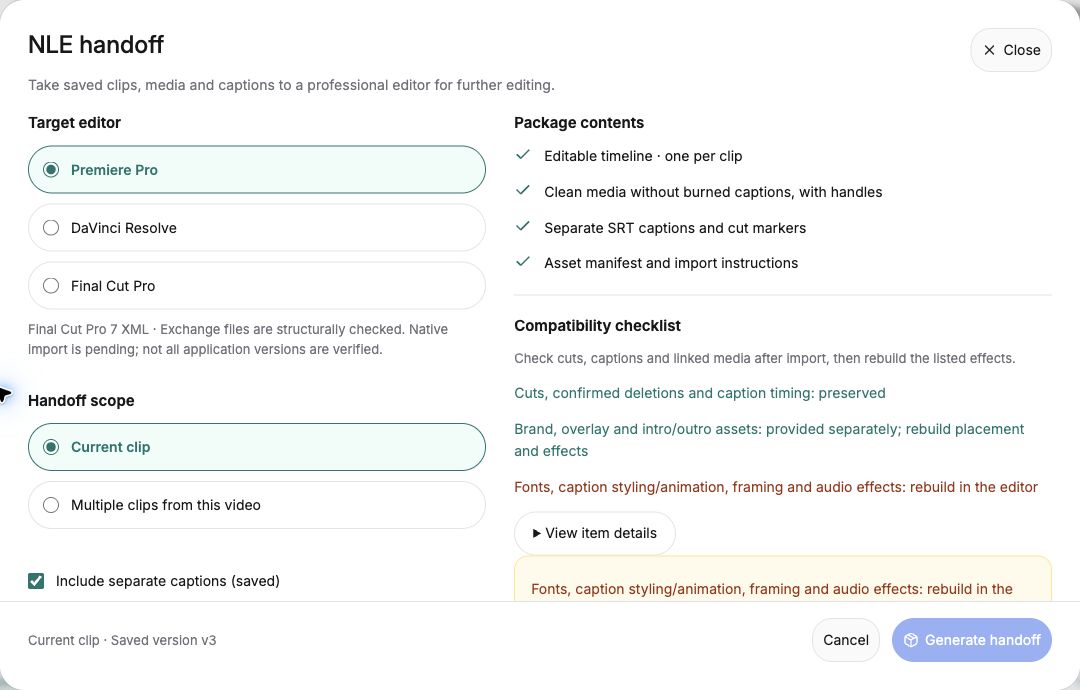
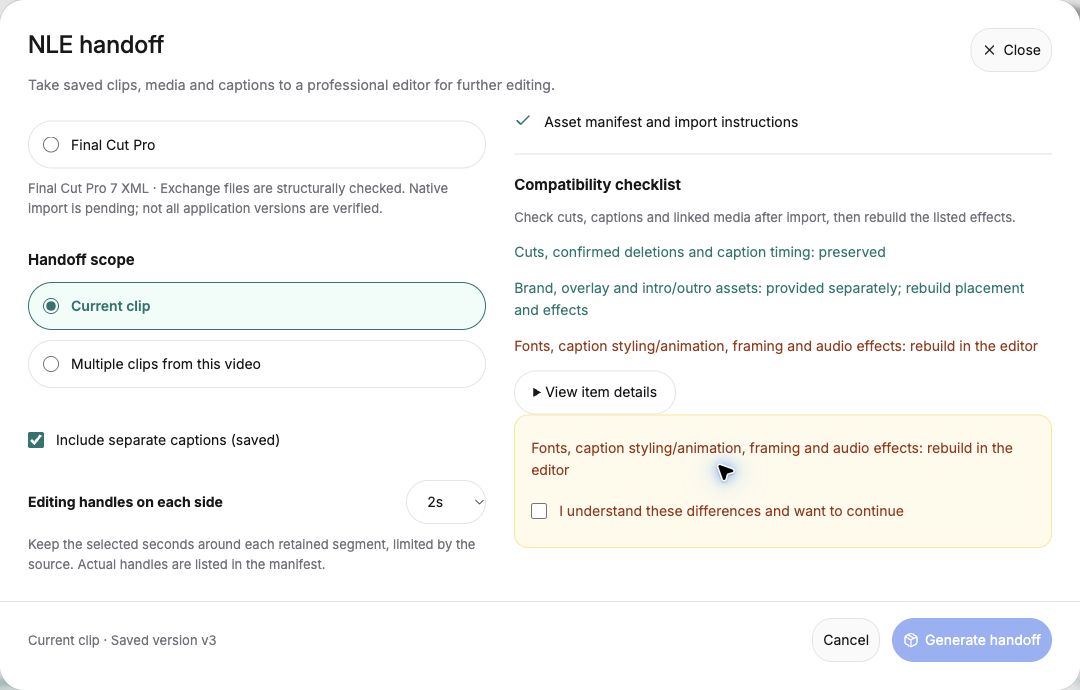
Choose whether to include the saved separate captions. Including saved translated SRT requires Standard and does not generate a new translation. Editing handles can provide a little room around the selected media: choose 0, 1 or 2 seconds, within the available source range. Handles are not a copy of the whole episode.
3. Know what arrives and what needs rebuilding
The ZIP contains the timeline, trimmed clean media, saved SRT captions when included, referenced assets and import or rebuilding instructions. The media does not have captions burned into the picture. Keep the package contents together so that references remain usable when you import the timeline.
Preserved cuts and caption timing do not mean every effect transfers. Complex framing, caption fonts and animation, audio effects, logo placement, overlays and intros/outros may need rebuilding in the target editor. Use the supplied assets and instructions to recreate the intended appearance. Private fonts are not distributed in the package; arrange access to any font you need through an appropriate licensed source.
This is not the complete source file. If the receiving editor needs material beyond the supplied ranges, agree on a separate authorized source delivery. Do not promise that a short clip package contains enough footage to recut the entire conversation.
4. Verify the result in the target application
After downloading and extracting the package, follow its import instructions. Check that media links resolve, open each timeline and play across the first cut, internal joins and the ending. Compare the spoken words with the saved captions and check whether the captions need a separate import step in your editing workflow.
Rebuild the listed effects, then check the picture at the intended output size. In particular, inspect reframed faces, caption safe areas and the transition between an intro and the main clip. A successful file import alone does not establish that the result is ready to publish. The publishing checklist is useful again after the editor exports the final video.
5. Resolve failed items before calling delivery complete
Follow the task’s status rather than assuming a click on Generate means the package is ready. If a multi-clip job partly fails, review the failed items and use the available recovery action. If you choose to package only successful items, tell the recipient which clips are missing.
Handoff does not extend file retention. Download the ready package while access remains available, and keep an appropriate copy for your editing work. If the product reports that an older package can no longer be used, configure a new handoff from an eligible saved version instead of forwarding an unusable link.
Prepare a clear editing handoff
Start with one saved video clip, read the compatibility details and check the resulting timeline in your editor.
Open ClipPrism