From Podcast to Publishable Shorts
How to Make an Audiogram from a Podcast
Turn an MP3 or WAV passage into an audiogram. Set the cover, title and sound visualization, understand plan limits, then save and check the MP4.
An audio episode can become a short video without a camera recording. An audiogram combines a selected passage with a background, optional cover, on-screen title and sound visualization. The picture gives the listener something to recognize, but the excerpt still needs a clear opening and a complete thought. Start with the words, then build the canvas around them.
1. Upload an MP3 or WAV you can share
Open My content and upload an MP3 or WAV that you own or have permission to edit and share. Choose the language actually spoken in the recording, confirm your rights and select Find clips. Leave the default content name in place if it already identifies the episode clearly. A name in My content is separate from the title displayed inside the finished video.
The same processing-minute and upload limits apply to audio. Check the proposed source and processing range before starting. A shorter selection can be useful when you already know which part of a long episode contains the discussion you need. Do not upload a recording simply because it is publicly available: access to a file does not grant permission to republish it.
2. Choose a passage that makes sense on its own
Open a candidate and listen before adding decoration. Can a new listener tell who or what the speaker means? Does the ending finish the idea? A strong first sentence does not compensate for a missing explanation. Compare the suggestion with the surrounding audio, then open Edit clip to adjust the range.
Listen across both boundaries at normal speed. Keep a necessary breath or pause, and avoid cutting off the first consonant or the final word. If the answer depends on the host’s question, include enough of that question or choose another passage. The guide to clip boundaries explains how to assess these decisions before polishing the presentation.
3. Set the cover, title and visualization
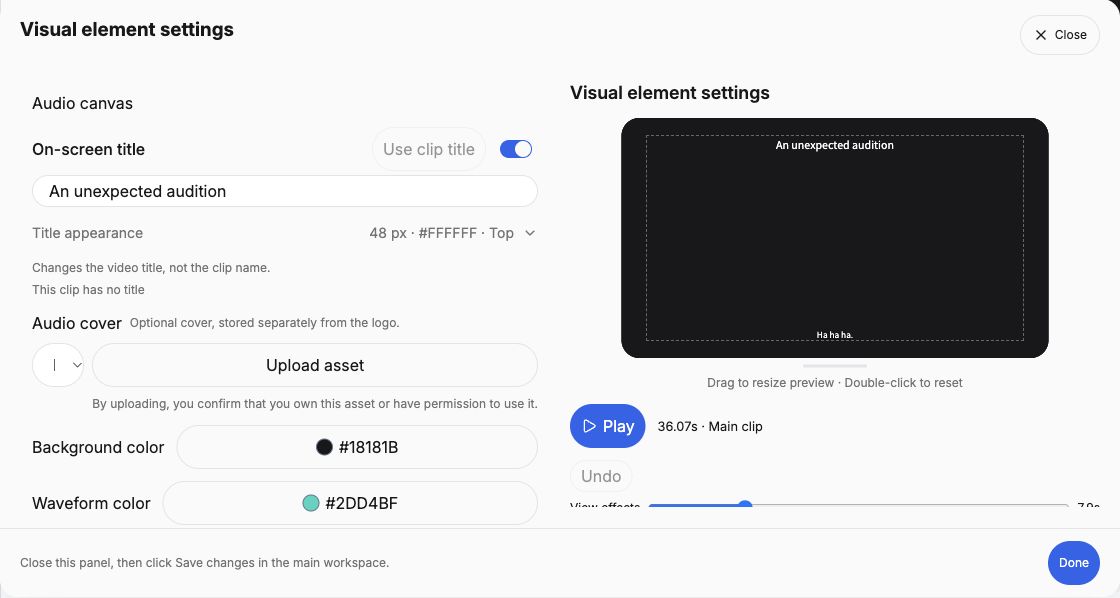
The basic audio canvas starts at 1:1. Open Visual element settings to choose a background, add an optional audio cover and edit the on-screen title. The cover is separate from a brand logo. Use your own artwork or an image you are authorized to use, and choose a short title that accurately describes this particular passage.
Choose a sound visualization and adjust its color and size so that it supports the audio without covering the words. Listen to a quiet section as well as a louder sentence. Leave breathing room between the title, cover, visualization and captions. Audio has no filmed subject for camera tracking; changing the canvas does not create footage of the speaker.
The nine visualization styles are Waveform, Spectrum bars, Falling peaks, Flame, LED bars, Spectrum curve, Radial spectrum, Scrolling spectrogram and Level bar. Pick one that suits the pace of the passage; more movement is not automatically clearer. Adjust the size with the available controls or preview handles, and reset it if the composition becomes crowded. Live effects reference the source audio, so generate the clip to check the processed result. The Level bar is a visual energy display, not a calibrated loudness meter.
Basic cover, background, title and visualization controls do not add a separate plan requirement. Free exports are up to 720p, with a watermark and no captions. Other picture ratios, caption features, audio cleanup, logos, overlays and intros/outros keep their existing plan requirements. See pricing before planning an output that depends on those features.
4. Check the voice and the words separately
Where your plan allows it, use Audio settings to compare a sound adjustment with the original. Listen for natural speech, not just a louder result. Audio cleanup is a separate task: review suggested cuts one at a time and listen to each join. An effect preview does not confirm a deletion, and a saved audio scheme does not make the editorial choice for you.
Review names, numbers and specialist terms in the captions. If you use translated captions, check their meaning against the original speech and follow the separate translation workflow. Generating a translation during discovery does not unlock paid caption editing or captioned exports.
5. Save, generate and inspect the actual file
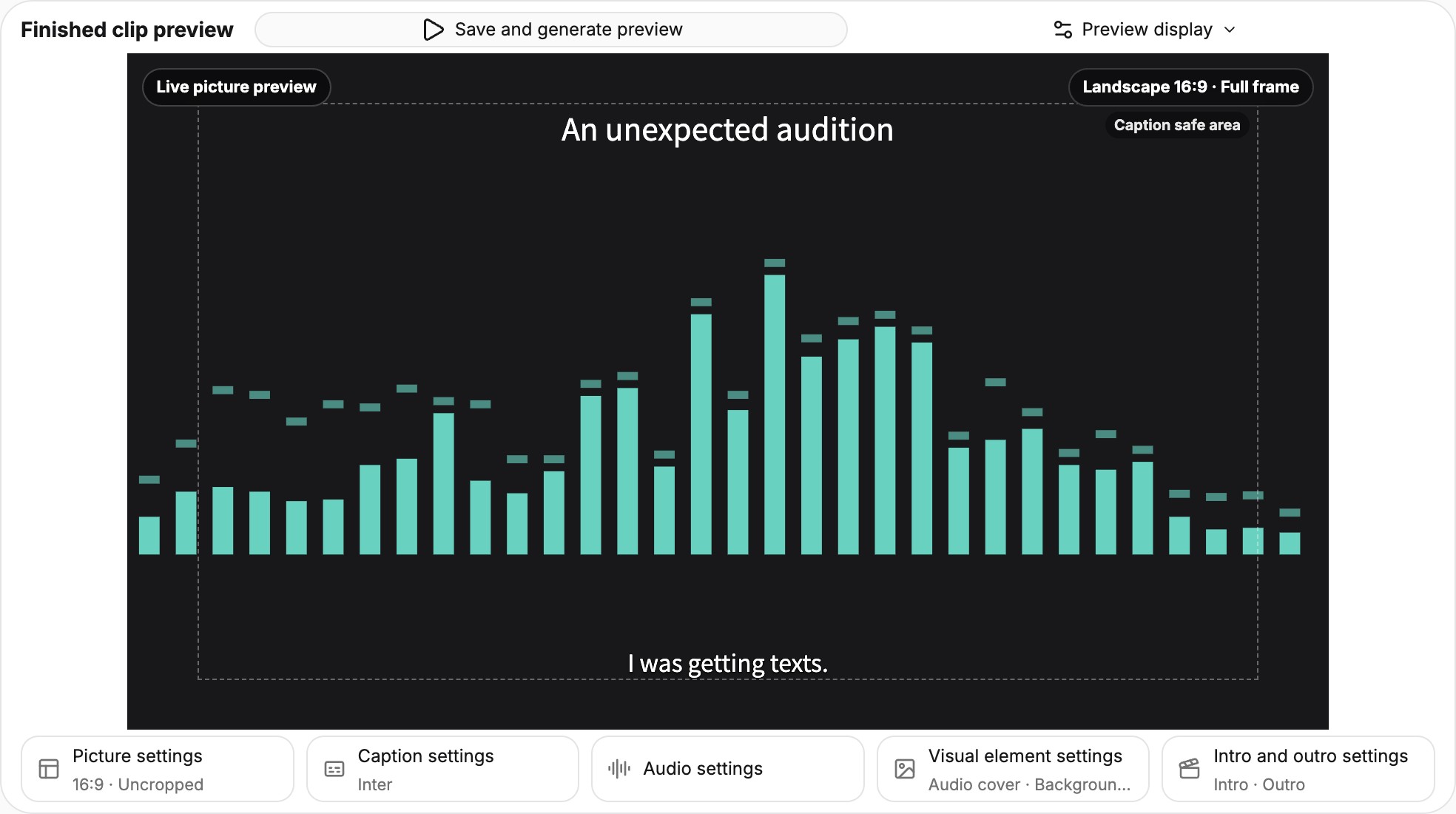
Save the clip changes, then generate the finished clip preview. If the workspace offers a combined save-and-generate action, check that it includes the changes you intend to export. A live canvas preview is useful for arranging elements; it is not the final encoded video.
Play the generated result from beginning to end. Check the title, cover, visualization, audio joins and any captions included by your plan. Create an account to export, then download the MP4 and play that file too. If a later edit makes the preview out of date, save and regenerate before downloading again. Pure audio and audiograms are not supported by NLE handoff; use the Audiogram MP4 workflow for this source type.
Make one audio passage worth watching
Choose an episode you can share, find a complete idea and give it a simple, readable canvas.
Open ClipPrismNext: reuse your clip’s appearance or follow the publishing checklist. Browse all guides.