
From Podcast to Publishable Shorts
How to Review and Export Clips Across Videos
Review a cross-video queue, keep saved clips and check batch output. Learn why selections are excluded and how to handle partial results.
When clips from several recordings are ready for review, opening every source separately makes it easy to lose track of which version you approved. ClipPrism’s review queue puts candidates from different videos in one place. Use it to make an editorial decision first, then prepare the saved versions you actually want to export.
Queue visibility is different from batch access. Free and Lite can browse the queue and open individual clips. Standard adds continuous review and batch generation/download. Batch selection requires a kept clip with a saved edit; appearing in the queue alone is not enough.
1. Start with a review goal
Open Batch review & export from My content. Search by clip or video name, filter by source, and use the review-status filters to narrow your work. The horizontal queue lets you move between candidates; Expand list gives you a longer list when the current row is not enough.
Choose a concrete review goal, such as three answers to distinct audience questions. A queue containing twenty candidates does not imply twenty useful posts. If several clips repeat the same answer, compare their boundaries and keep the version that communicates it most clearly.
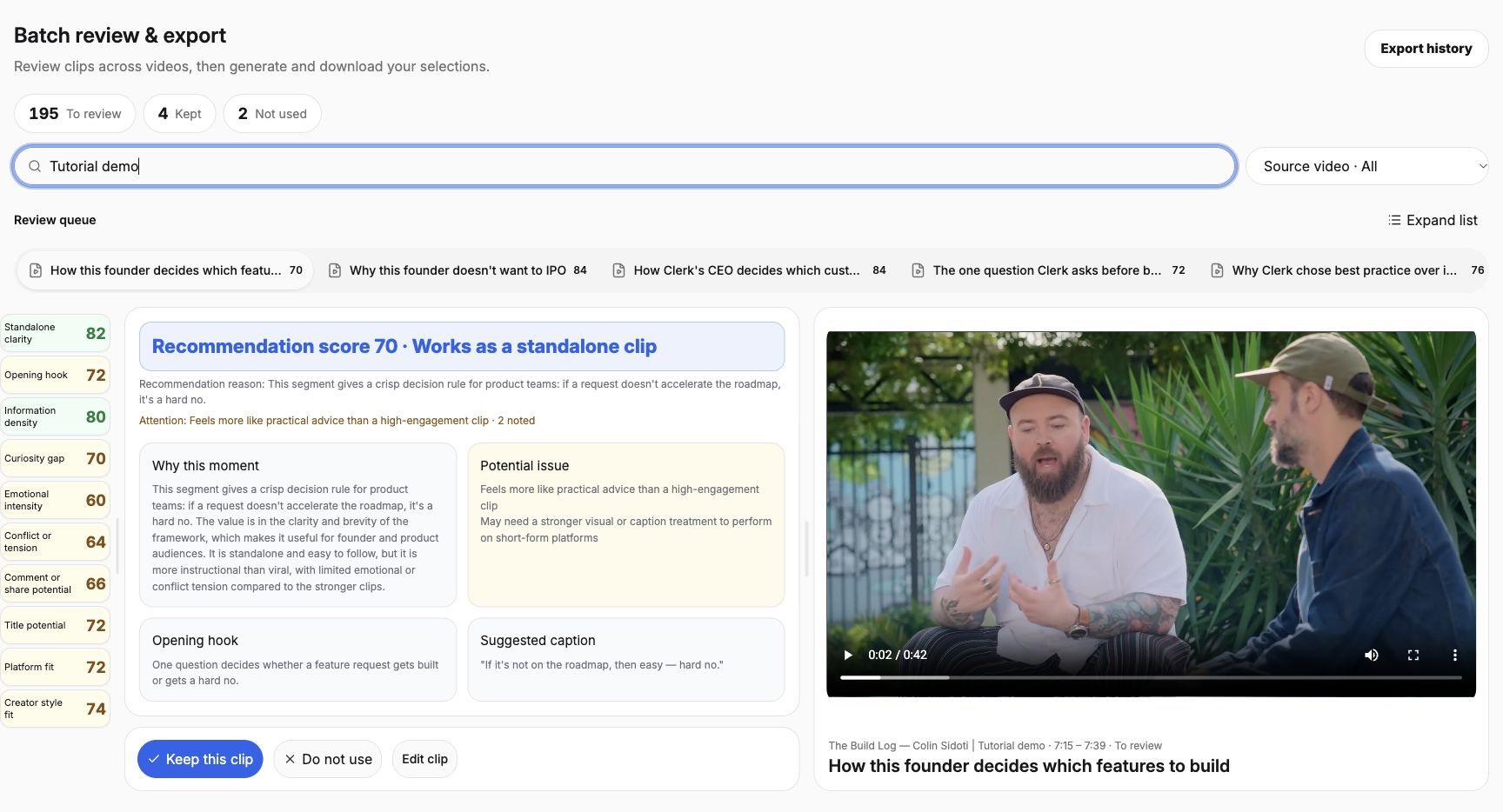
If a clip seems missing, check the search text, source and status filters before assuming that processing lost it. A filtered list only describes its current selection of results.
2. Review meaning before marking a decision
Read the recommendation analysis and watch the preview. Scores can help choose where to start, but they do not confirm that a cut is fair, complete or appropriate for your audience. Check the question, answer and final qualification against the source context.
When the clip needs a different range, corrected captions or a visual adjustment, open Edit clip. Save the revision before returning to the queue. An unsaved draft is not a reliable version for another reviewer or a later export.
Use Keep this clip for the current version you intend to retain, or Do not use when it does not fit the set. Keeping a clip records a review decision; it does not generate an MP4, download a file or publish a post. After changing a previously reviewed cut, review the new saved version rather than relying on the earlier decision.
3. Select the saved clips you intend to deliver
On Standard, select clips that are kept and have a saved revision. If a selection checkbox is unavailable, check the plan, review decision and saved edit first. Return to the editor when the queue asks you to fix the clip, then save and review it again.
A saved version still needs an available source and compatible output settings. Expired or unavailable media cannot be made usable merely by selecting it. Follow the item’s recovery guidance and exclude it from the current delivery if the source cannot be recovered in time.
For example, if you want one answer from each of three episodes, verify the source and title for every selected item. Similar titles can refer to different cuts. Keep a small, intentional selection rather than selecting all visible candidates and expecting the export process to make the editorial choice.
4. Check the output before generating
Choose Set output and continue. Review the caption option, picture ratio and archive name, then choose Check selections. These output settings apply to the batch; they do not rewrite the clips or their saved captions.
Read exclusions individually. A source may be unavailable, captions may be missing, or the chosen ratio may not match a saved effect template. Correct the relevant clip or choose a compatible output. Do not assume that every selected item passed because some items are eligible.
When the check reports the intended eligible set, choose Generate clips. If the selection or saved version has changed, refresh and check again. This helps ensure that generation uses the versions you reviewed.
5. Treat partial success as a checklist
Watch the batch result for completed and failed items. A partially failed batch is not a complete delivery. Compare the successful items with your intended set and resolve the remaining failures separately; avoid regenerating successful work just because another item failed.
When available, create the clip archive and download it. Open the files and compare their number and names with the completed items. Play each MP4, including its first and last seconds, captions, framing and audio. The publishing checklist covers this final review.
Marking a batch as downloaded is a tracking action. It does not prove that the archive reached your device or that you checked every file. Keep the downloaded files in your own storage before their availability ends. ClipPrism’s batch workflow does not automatically publish them to social platforms.
If you need an editable NLE handoff instead, note the different scope: Standard supports several saved clips from the same video, each as its own timeline. That handoff is not a cross-video combined sequence or a substitute for checking the actual MP4 delivery.
Review a small set across your recordings
Choose distinct answers, save the edits and check the intended output before starting a batch.
Open My content